Chrome extension
List Extractor
Click one item in a list and take the whole list, page after page.
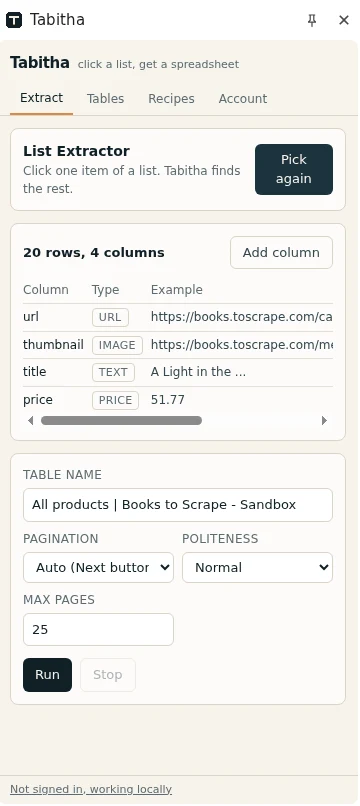
All nine toolsThis is the tool most sessions start with. You click a single card, row or search result. Tabitha works out which container holds it, finds every sibling that looks the same, and proposes a column for each piece of text and every link or image inside the item.
Each column keeps several ways to find itself: a ranked set of CSS selectors, an XPath and a text anchor. When the site changes its markup, Tabitha rebuilds the column from that anchor. Without one, a renamed class quietly turns a good column into blanks.
What it looks like
How it works
- Step 1
Click one item
Open the side panel and click a card in the list. The matching items light up on the page so you can see straight away whether the detection caught the right set.
- Step 2
Check the columns
Tabitha names the columns from the surrounding markup and guesses the type: text, number, price with currency, link, image, email, phone, date. Rename, drop or add a column before anything runs.
- Step 3
Set the pagination
Point at the next button, use the page number in the address, click a load more button or let the page scroll. Set a page cap so a run cannot go on forever.
- Step 4
Run and export
The table fills row by row while you watch. Stop it whenever you have enough, then export CSV, XLSX or JSON, or sync it to your account.
When to reach for it
- Search results, catalogues, directories, listing boards and anything else that repeats the same block.
- Pages where the list continues behind a next button or a load more button.
- Jobs you will repeat: save it as a recipe and run it again next month.
- Anything you would otherwise copy into a spreadsheet cell by cell.
What it will not do
- It reads what the page has rendered. If content appears only after a click you never make, it is not there.
- Items that share nothing structurally, for example a hand written page where every row is different, will not group.
- It will not fill a form or run a search for you. Get the page into the state you want first.
What people do with it
- Turn a company directory into a call listTwo hundred companies, spread over ten pages, and the sheet is due today.
- Take local businesses out of a map searchThe results panel holds exactly the shops you want. Copying every name, address and phone by hand costs you an afternoon.
- Take the exhibitor list before the fair startsThe exhibitor catalogue is a web page with four hundred names on it. You have two days at the fair and would like to plan them.
- Copy a competitor catalogue into a sheetTheir shop shows twenty products per page. You want the whole assortment next to yours, in one view.
- Watch competitor prices without a subscriptionYou need to know when they cut a price. Tools that do this start at a monthly fee per shop.
- Check availability across a whole shelfOne product page tells you it is out of stock. You need the answer for three hundred products at once.
- Read every review at onceFour hundred reviews sit behind a load more button. What you want is the thing people repeat, and the first ten will not tell you.
- Follow a property search without refreshing itYour search returns sixty flats and the good ones go in two days. The portal will not export any of them.
- Collect job ads from a boardYou are tracking who hires for what. The board shows ten offers at a time and has no export button.
- Build a calendar out of an events pageA whole season of concerts, published as a page of cards. You want the dates and the prices in a calendar or a sheet.
- Track what a marketplace category really costsYou want the price spread across one category. The marketplace lets you sort it and nothing more.
- Keep a page of search results as dataYou need the first hundred results for a query. Read in a browser tab, they leave you nothing to sort.
- Take a public table off Wikipedia or a government siteThe number you need is in an HTML table that nobody publishes as a file.
- Build a bibliography from a results listThe database shows fifty papers per page and the export button asks you to make an account first.
- Size a market from the pages that describe itSomebody asks how many players there are in a niche. The answer is scattered across directories and rankings.
- Compare repositories and dev tools in a sheetYou are choosing a library and the shortlist lives in twenty browser tabs.
- Watch several news sources in one tableFive sites cover your topic and not one of them has a usable feed, so you check them by hand every morning.
- Let Claude do the clickingYou know what you want out of the page and you would rather describe it once than set the columns yourself.
- Run the same job next month without setting it up againYou did the work once. In four weeks you will be picking the same columns on the same site from scratch.