Your first table in about a minute
Tabitha is not in the Chrome Web Store yet, so you load it from a zip in developer mode. Four steps, and it works in Chrome, Edge, Brave and other Chromium browsers.
What it asks for
Tabitha asks for four permissions on install: the active tab, scripting, storage and the side panel. Access to all sites, downloads, the clipboard and the debugger are optional and requested at the moment you use a feature that needs them. If you never download images, the extension never gets the downloads permission.
Chrome shows the permission list from the manifest when you load the folder, before anything runs.
Four steps
Each screenshot below is Chrome at the moment that step happens.
- 1
Download and unpack
Save the zip and unpack it into a folder you will keep. Chrome loads the extension from that folder every time it starts, so do not unpack it into Downloads and clean it up later.
Download the zip - 2
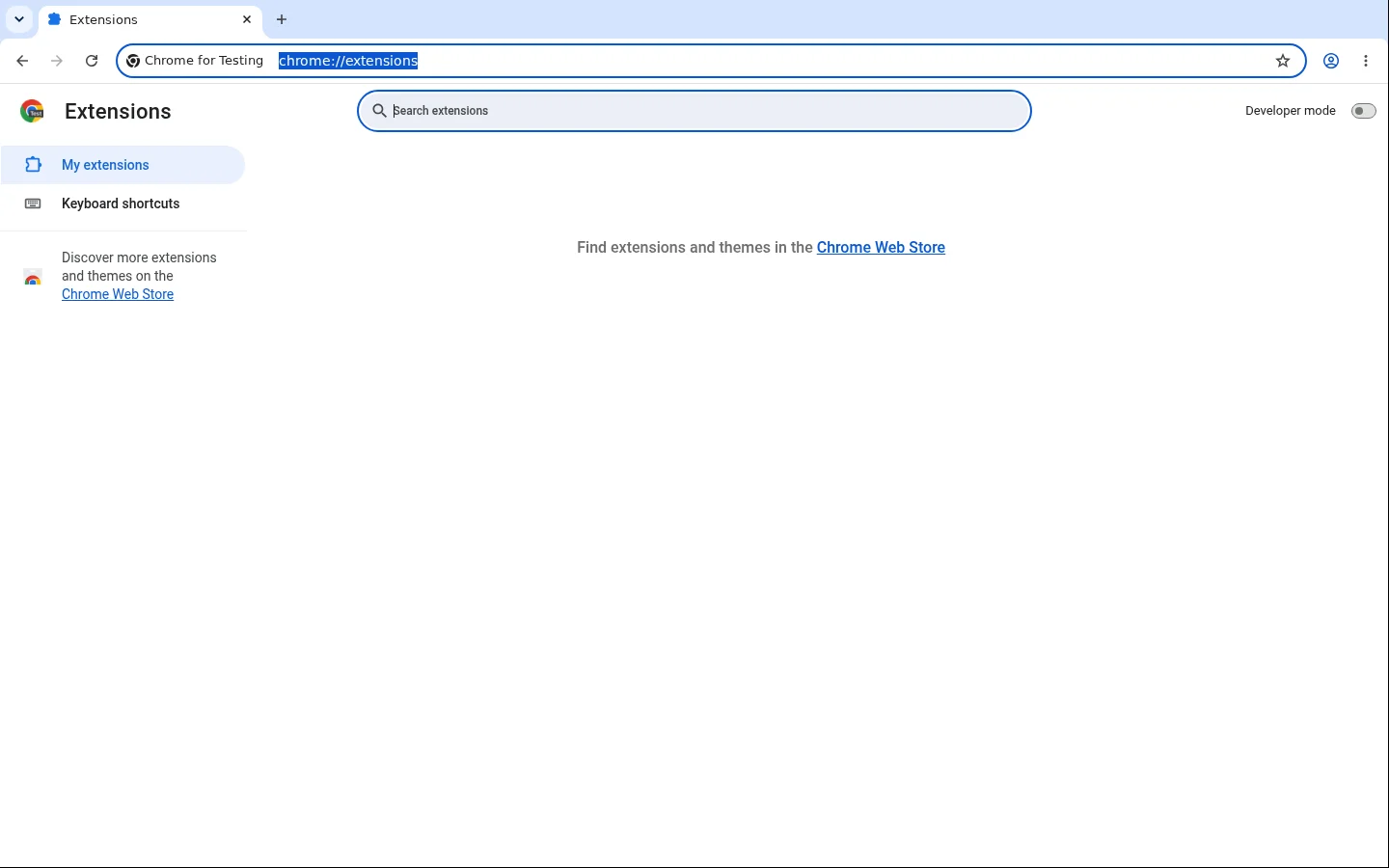
Open the extensions page
Type chrome://extensions in the address bar, or open the puzzle icon and choose Manage extensions.
- 3
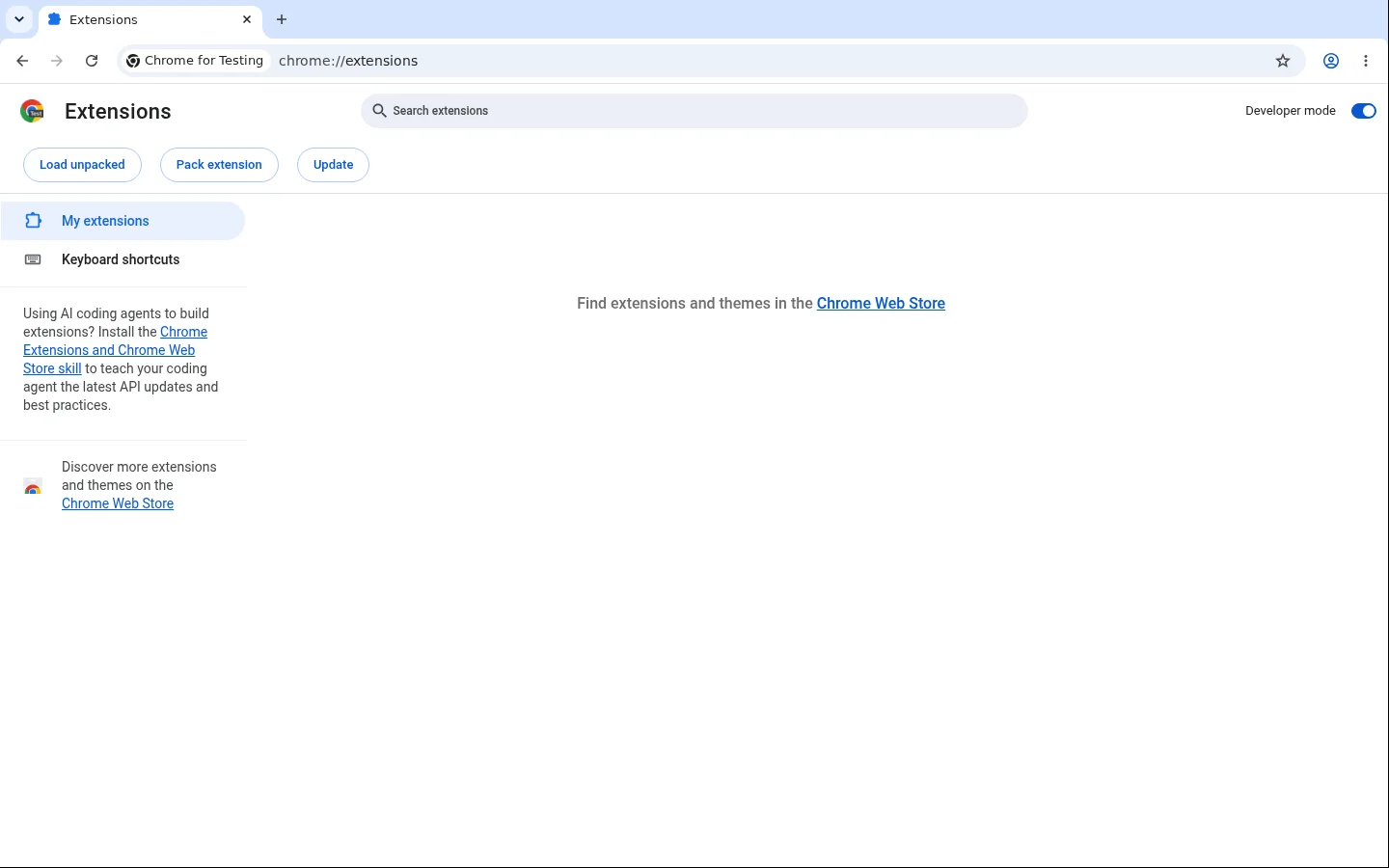
Turn on developer mode
The switch is in the top right corner of that page. Without it, Chrome refuses to load an unpacked extension.
- 4
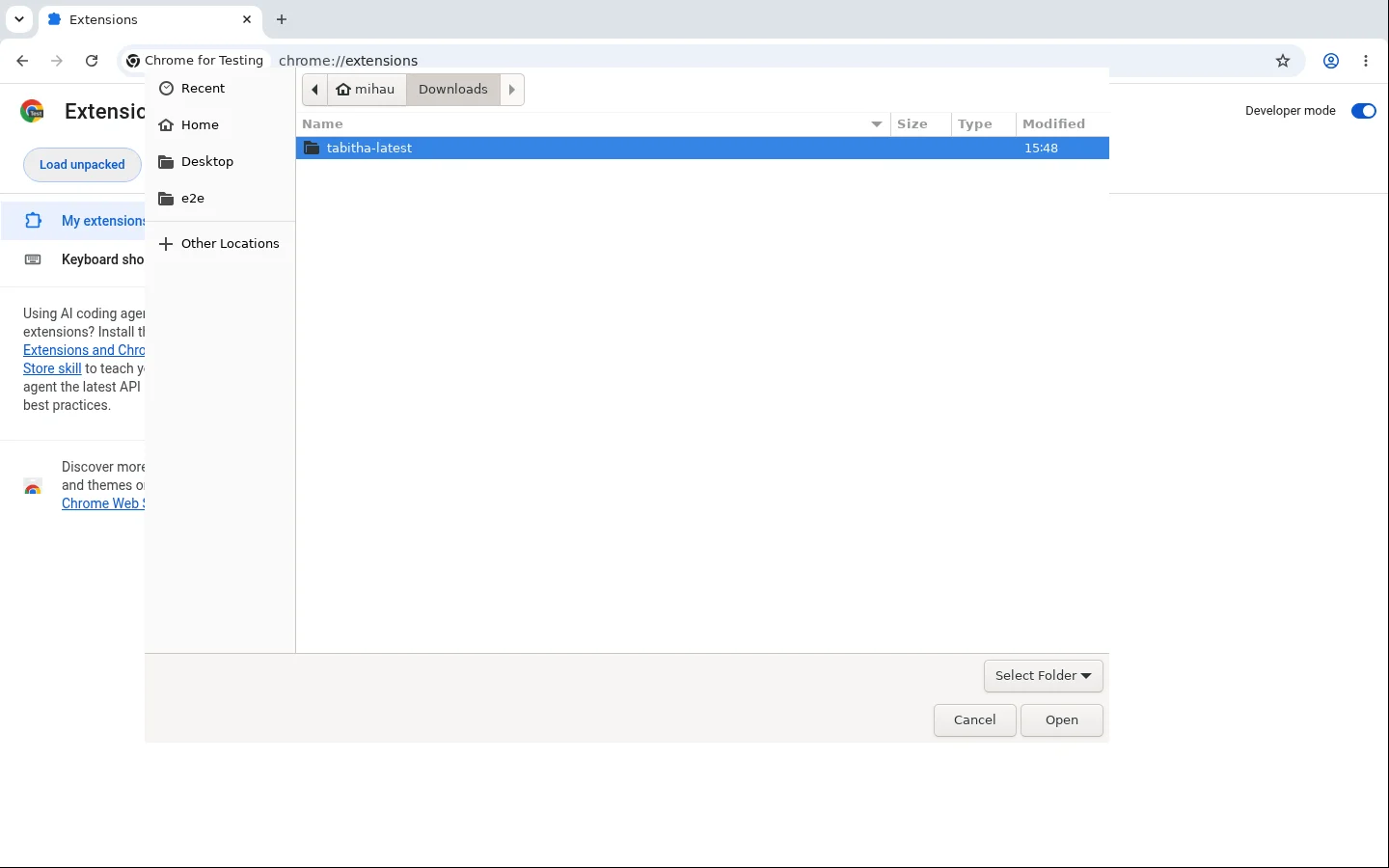
Load unpacked
Click Load unpacked, select the folder you unpacked, and Tabitha appears in the list. Pin it, then open any page with a list and click the icon to open the side panel.
About the Chrome Web Store
A store listing is planned but not decided. Review for an extension that can read any page you point it at takes weeks and can come back with questions. We would rather ship to people who want it now and go through review with a product that already works. Updates in developer mode mean downloading a new zip and pressing reload on the extensions page, and the changelog says when a new zip is worth the trouble.
ChangelogIf something goes wrong
- Chrome says the manifest is missing: you selected the parent folder. Choose the folder that contains manifest.json.
- The icon is there but the panel is empty: reload the page you were on. A freshly installed extension cannot reach tabs that were already open.
- Your browser is managed by an employer: an administrator policy can block unpacked extensions. There is no way around that from our side.