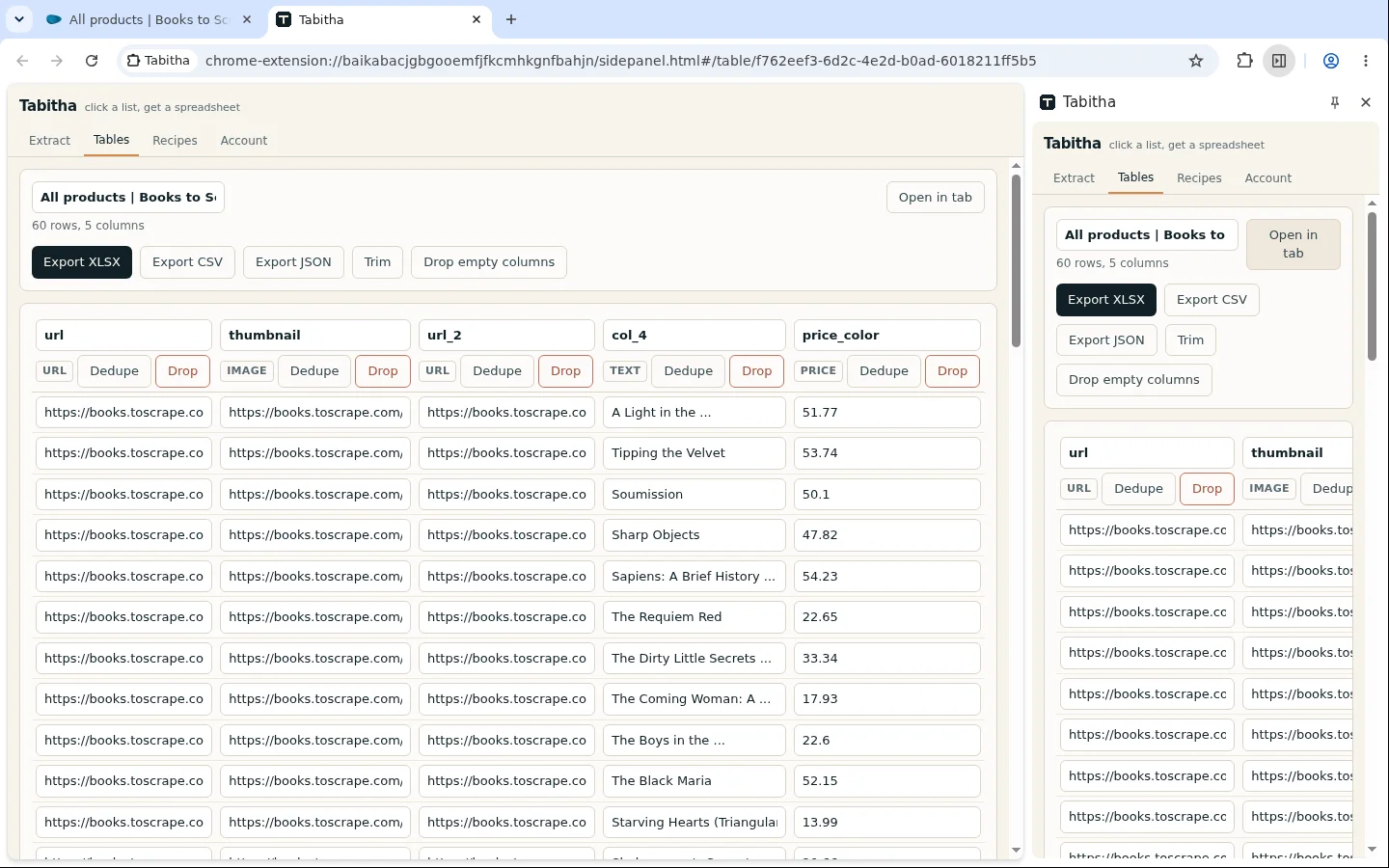
The table opens in a full browser tab and holds hundreds of thousands of rows without stuttering. Every change you make in it can be undone.
Fix a cell by typing in it. Drop the column that came back empty. Deduplicate by domain, merge a first and last name, split an address, trim the whitespace a site left behind. Then export, or sync the table so Claude can query it over MCP.
What it looks like
How it works
- Step 1
Open the table
From the side panel, or from the extension icon. Sorting, filtering and column reordering are where you expect them.
- Step 2
Clean it
One click each: drop empty columns, deduplicate by a column, trim, merge two columns, split one, rename. Every operation is listed so you can see what happened to the data.
- Step 3
Fix by hand what tools cannot
Edit any cell. Add a column and fill it in. Delete the rows that came from the wrong page.
- Step 4
Export or sync
CSV, XLSX or JSON, with types kept: numbers as numbers, prices with the currency in its own column, dates in ISO format. Sync to the account when you want it on another machine or in Claude.
When to reach for it
- After every run, because no first run is clean.
- Merging runs: append last week to this week and deduplicate.
- Preparing a file for a CRM import that will reject a malformed column.
- Handing a table to Claude, which reads it far better once the columns are named properly.
What it will not do
- It is a table, not a spreadsheet. There are no formulas and no charts.
- Very large tables stay local until you sync them, because the upload is limited to a thousand rows per batch.
- Undo covers the session. Once you close the table, cleaning operations are final.
What people do with it
- Keep a league table you can actually calculate withThe standings look fine on the site and turn into one long text column the moment you paste them anywhere.
- Hand the file over in the shape the next system wantsYour CRM rejects the import because the price column is text and the same company appears three times.